The Connector builder is a tool for you to create, test, and deploy custom integrations within Supermetrics. This guide walks you through the prerequisites for using the builder and how to find it in Supermetrics Hub.
Prerequisites
To access the Connector builder, you need:
An active Supermetrics Marketing Intelligence Platform subscription with the Connector builder add-on enabled by your account manager
Admin, Owner, or Editor role within the selected team. Learn more about user roles in Supermetrics.
If you don’t have Connector builder enabled in your subscription, you can request beta access through the form available on the Connector builder page in Supermetrics Hub.
Accessing Connector Builder
Log in to the Supermetrics Hub.
On the Supermetrics Hub, you can find the Connector builder under Connect in the left-side navigation.
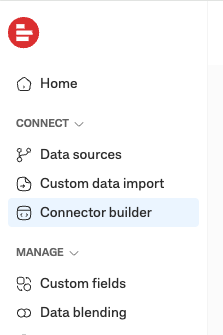
Click here to access the Connector builder directly.
Creating your first connector
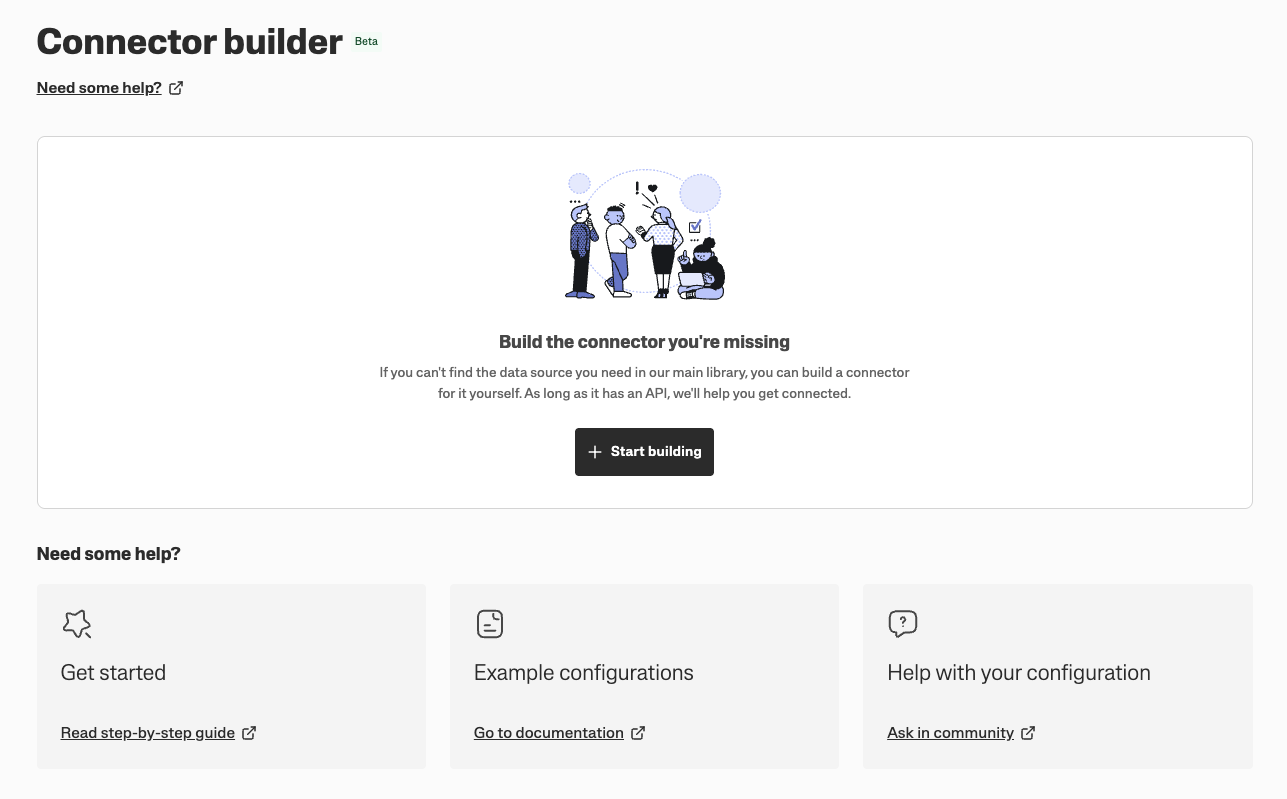
To create your first connector, click Start building to open the connector editor.
If you want to have a step-by-step walkthrough on creating a connector in Supermetrics, please see the tutorial for your first connector.
The connector editor opens with a template connector that you can use as a base and edit to match your specific needs.
Editing connector configuration
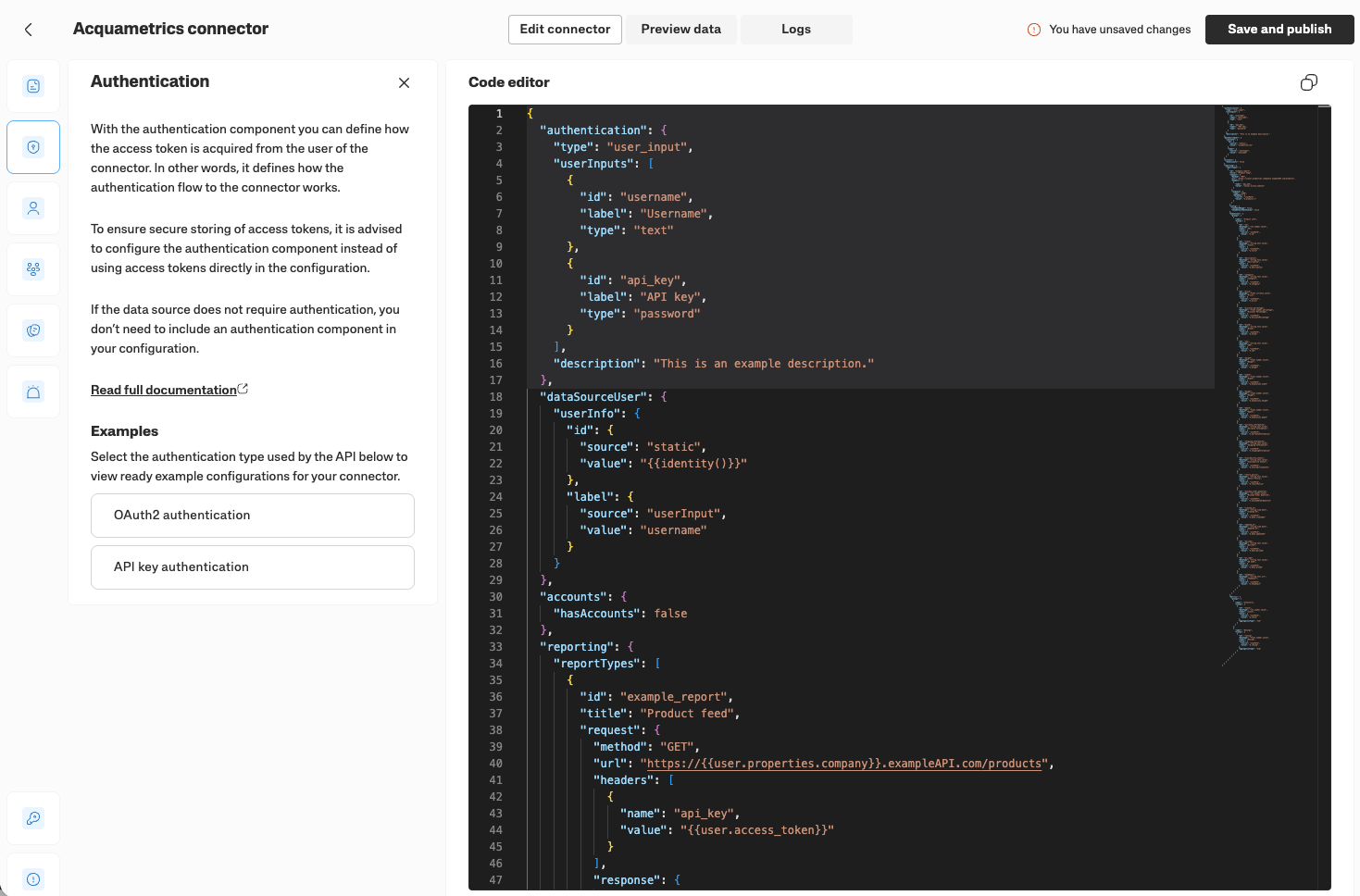
You can edit the connector configuration in the built-in code editor.
When editing the connector configuration within the Connector builder, it’s automatically validated to ensure a valid configuration. Any issues with the configuration are highlighted both in the editor and in the notification at the top-right corner.
You’ll also have quick reference to our documentation available on the left-hand side.
Publishing edits
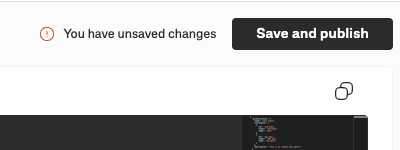
Once you have edited the configuration, any unsaved changes will be highlighted next to the Save and publish button on the top right.
When you click Save and publish, the new configuration is published to production, and you’re ready to start using the connector across Supermetrics products.
Using external text editors and IDEs
You can also copy the configuration to any text editor or IDE on your local computer if you prefer, and then copy the ready configuration to the connector using the Connector builder.
When working on an external text editor or IDE, you can add the following schema statement at the start of the configuration to have your IDE validate the configuration against the schema:
{
    "$schema": "https://api.supermetrics.com/cc/v1/schema/connector",
    "authentication": {
        ...
    }
}