Once you have created your connector in Connector builder, you probably want to use it Supermetrics features and destinations. The good news is that any connector you create is automatically available across Supermetrics in the same way as any other native data source we offer!
Note
Any connector you create will be available for all the members in your Supermetrics team.
How to find a connector you have created?
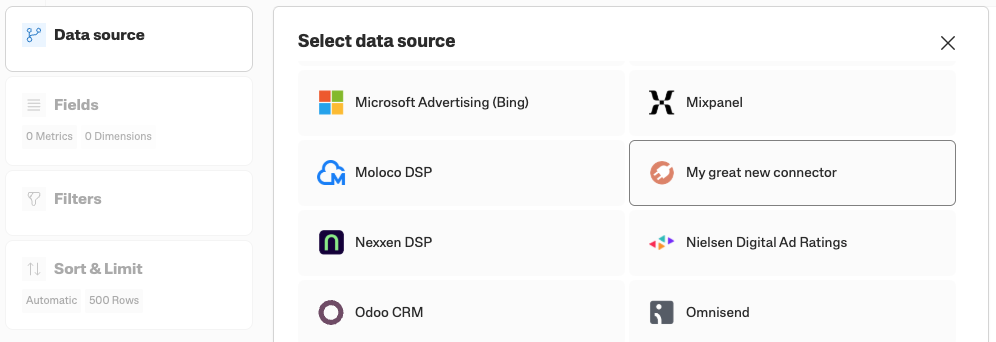
To use the connector you’ve just created, go to your data destination or the Supermetrics feature you want to use the connector in. For example, open the Supermetrics sidebar in Google Sheets if you want to use the connector in Google Sheets, or go to the Data transfers page on the Supermetrics Hub if you want to send the data to a data warehouse.
When selecting a data source for your query, transfer, blend, and so on, you can find the connector you just created by the name you defined for the connector in the builder.
Availability in features and destinations
Note
Connectors created using the Connector builder are currently not available in Data Studio.
Feature or destination | Available |
|---|---|
Data warehouses and cloud storage (such as Google Cloud Storage, BigQuery, Snowflake, Amazon S3, Azure Synapse) | Yes |
Supermetrics API | Yes |
Google Sheets | Yes |
Microsoft Excel | Yes |
Data Studio | No |
Microsoft Power BI | Yes |
Data Explorer | Yes |
Dashboards | Yes |
Data blending | Yes |
Custom fields | Yes |
AI Chats | Yes |
Supermetrics MCP server | Yes |