By default, the Supermetrics Adform data source only tracks total conversions and the 3 basic conversion types. Users however may want to define conversions differently than the 3 types or target specific conversions.
To support these additional use cases, new functionality has been added to use the tracking filters in Adform to filter results out by those tracked conversions. The Tracking Filter ID is added to an advanced option text box, and it will filter the query results based on that filter's settings.
Instructions
Step 1: Getting the Tracking Filter ID
Log in to your Adform FLOW dashboard.
In the left sidebar, click Audiences → Site Tracking.
Click the Tracking Filters tab.
Find the filter in the list you want to use and record the ID number.
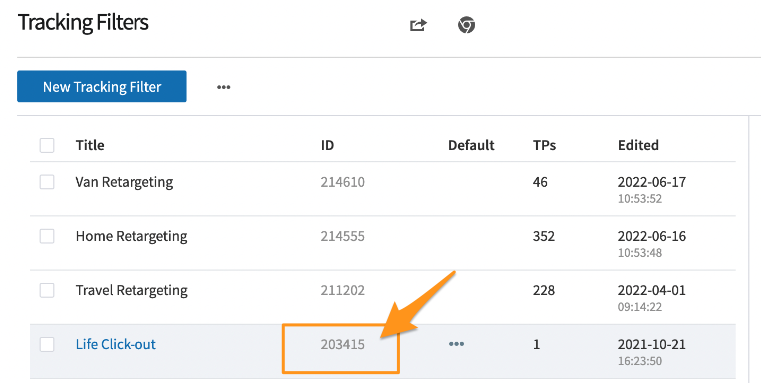
If you need to set up new tracking filters, see Adform's help guide.
Step 2: Using the Tracking Filter ID
In your data destination, select the Adform data source. Go to Options to find the Tracking filter ID text box. Paste the ID you copied from before into the box, and when the query is run, it will use that filter on the data coming from Adform.
Example from Google Sheets
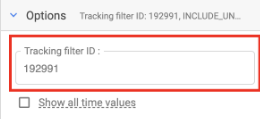
The setting only accepts one filter ID. To use additional filter IDs, you need to set up separate queries for them.