When working with unique count metrics — like Facebook’s “Reach” metrics, for example — you might see this error appear in a cell in Google Sheets:
Can’t be calculated, would require summing deduplicated values
Data Studio (formerly Looker Studio) might show 0 or “null” instead of this error message.
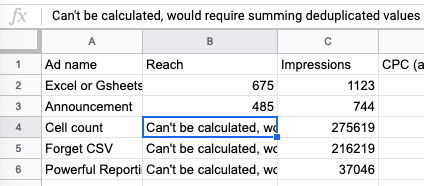
This error occurs when the data source calculates that the metric you’re using is a unique count. The unique metric count is based on a specific object, such as date, campaign, ad, post, or email, for example. The unique count metric returns an error in the following cases:
Unique count metric isn't split in a unique way enough.
Unique count metric isn't split at all.
Metric is split by unique objects (ads, campaigns, or objects) that have identical names.
Instructions
To solve this error, modify the query to include another dimension field that's unique. Unique fields include, but are not limited to, Ad ID, Campaign ID, Post ID, or Date, for example. The sums will then be split according to their unique object, clearing the error.
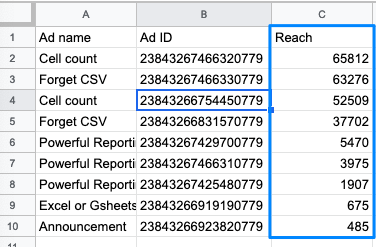
In Supermetrics for Google Sheets, adding the ALLOW_SUM_UNIQUE setting under Options → Advanced settings in the Supermetrics sidebar allows you to clear this error message.
Note
The results given by the ALLOW_SUM_UNIQUE setting are not correct, as this setting forces the summing of non-summable metrics.