Once you've created and synced a data stream on the Supermetrics Hub, the next step is to map the incoming source fields to the Data Activation platform's data model. This is where you define how your source data translates into customer profiles, engagement events, and external facts.
Each source field can be mapped to one of three data types:
Unique identifier: Maps a source field to a customer identity, for example, an email address or platform UUID (universally unique identifier). This is used for identity resolution: linking incoming data records to existing customer profiles, or creating new profiles when no match is found. At least one unique identifier mapping (set as primary) is required per data stream.
Engagement: Maps source fields to time-based interaction events, for example, page views, email opens, or contact activity. Engagement events represent things a customer did. Each engagement mapping creates events that are associated with the customer profile resolved through the unique identifier.
External fact: Maps source fields to attribute data, for example, company name, lifecycle stage, deal value, or industry. External facts represent things that are true about a customer. These are non-temporal properties stored on the customer profile.
Important: mapping accuracy
Review your field mapping carefully before saving. Currently, there is no rollback mechanism:
Wrongly created facts or engagements must be manually deleted.
Data that has been overwritten can't be rolled back to a previous version.
If a mapping is incorrect, the data already processed with that mapping can't be automatically corrected.
If a mapping is incorrectly saved, a subsequent adjustment is not possible. To overcome this, a new Data stream needs to be created on the Supermetrics Hub.
Take extra care when configuring identity resolution and mapping fields to existing facts and engagements.
Prerequisites
Before you start mapping, make sure the following are in place:
Access to the Data Activation platform with appropriate permissions allowing you to edit connections.
A synced data stream from Supermetrics Hub. The stream appears on the Data Activation platform in Connectors → Data connection → Data Sources
Facts and engagement events must already exist in the Data Activation Platform before you begin mapping. Confirm under Data → Customer facts or Data → Engagements that the facts and engagement events are set up. The mapping wizard doesn't support creating new facts or engagements inline. You need to create them in their respective sections of the platform first.
Instructions
Step 1: Map your fields
On the Data Activation platform, go to Connectors → Data Connections → Data Sources.
Find your data source and data stream in the list.
Click Map fields to open the mapping screen. The mapping screen shows all source fields from the data stream on the left panel.
Select a source field from the left panel.
In the detail panel on the right, choose the mapping type: Unique Identifier, Engagement, or External Fact.
Select the specific fact, engagement event, or identifier to map to.
Repeat for each source field you want to map.
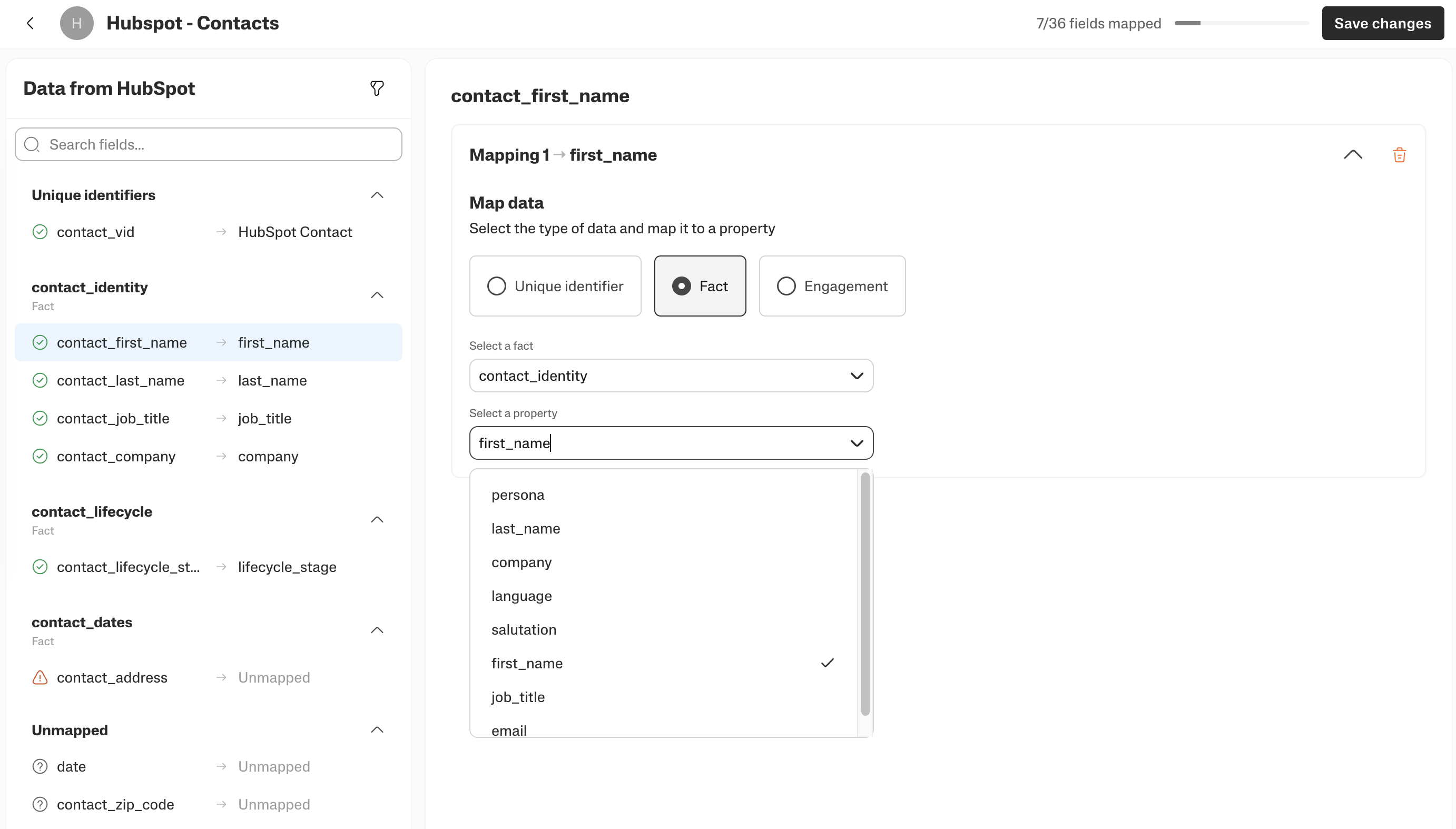
You don't need to map every source field. Map only the fields relevant for your activation use cases.
The Data Activation platform applies basic validations to mapped fields to help ensure data quality, for example, email format and phone format checks.
Step 2: Save and activate
After you've configured all the field mappings, save the mapping configuration. Once saved, the Data Activation platform begins processing incoming data according to your defined mappings.
The platform reads the raw data stored in the Supermetrics Hub, applies the field mappings, resolves customer identities, and populates the corresponding facts and engagement events. Depending on the volume of data, this processing step can take some time before all facts and engagements are fully created.
Depending on the size and volume of the data, it can take anywhere from a couple of minutes to a couple of hours.
After the initial processing is complete, new data from subsequent daily syncs (every 24 hours) is processed automatically using the same mapping configuration.