Self-serve data ingestion lets you pull data from your CRM, marketing, and commerce platforms directly into the Data Activation platform. It's the most straightforward way to get started with data ingestion and data activation. You can connect your data sources, choose the fields you need, and start activating audiences — without relying on manual data setups or custom data pipelines.
For self-serve data activation, you first create a data stream that defines which data source, accounts, and fields you want to pull into the Data Activation platform.
The data streams use Supermetrics connectors to extract data from third-party platforms and store it in the Supermetrics Hub. From there, the Data Activation platform reads, transforms, and activates the data based on the field mappings you configure.
Supported data source connectors
The following data source connectors are available for data ingestion through data streams:
HubSpot
Adobe Analytics
Klaviyo
Shopify
Mailchimp
More data source connectors will be added over time.
Prerequisites
Before you start setting up self-serve data ingestion, make sure the following are in place:
An active Marketing Intelligence Platform subscription with the Data Activation destination enabled.
At least one supported data source connector is included in your Supermetrics subscription.
Your Supermetrics Hub role is Owner, Admin, or Editor. Users with the Viewer or Finance role can't create data streams.
Instructions
Step 1: Navigate to Activation data
On the Supermetrics Hub, go to Data Activation.
Select the Activation data tab. This switches the view to show data streams configured for the Data Activation Platform.
Step 2: Select a data source and accounts to use
Click + Add customer data.
Select the data source you want to connect to. If you haven't connected to this data source before, you'll be prompted to log in and authorize access.
Select the specific accounts you want to include in this data stream. Each data stream is configured with a defined set of accounts.
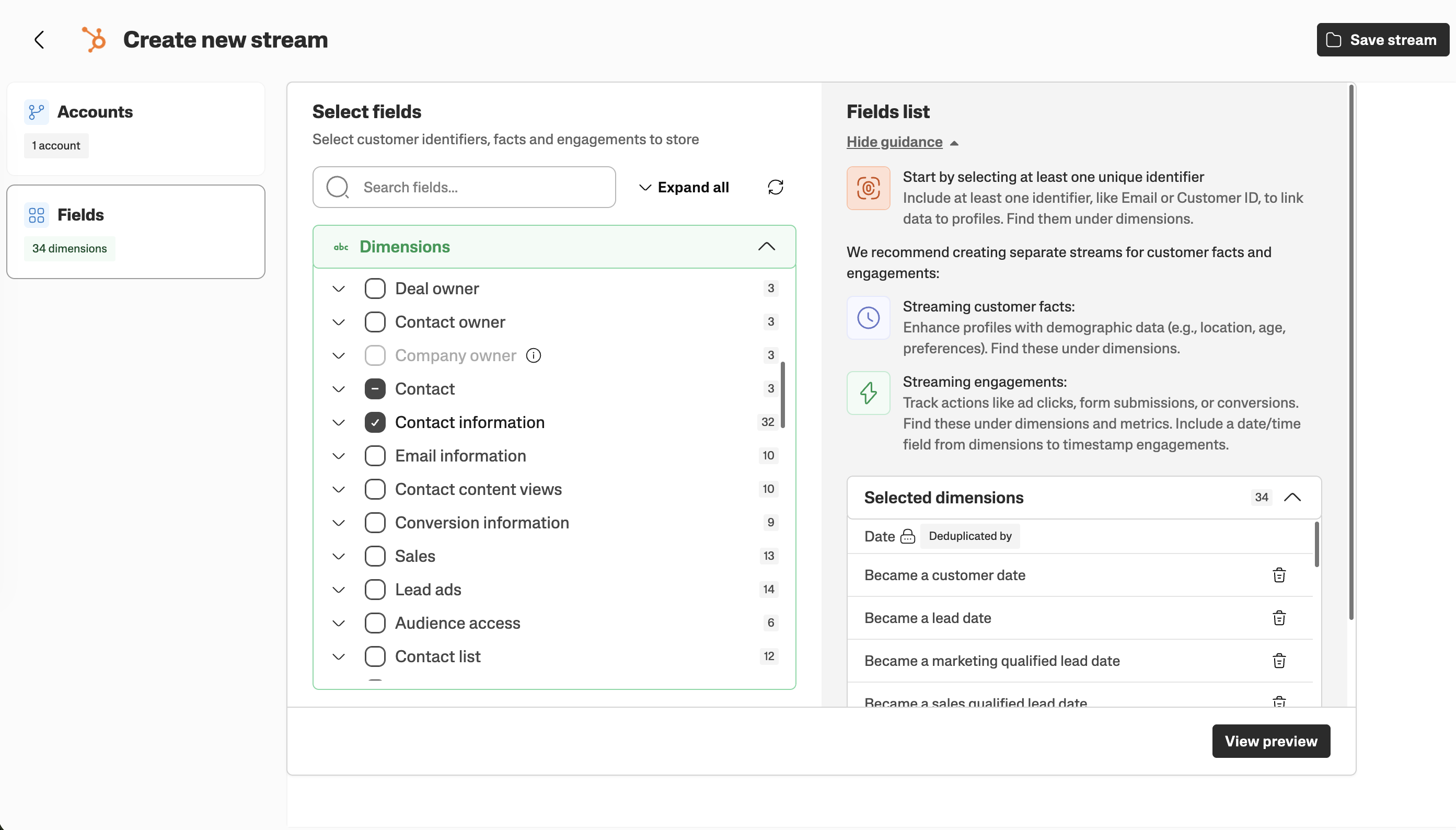
Step 3: Select fields
Select the dimensions you want to include in the data stream. These are the fields available for mapping in the Data Activation platform. Note that, currently, you can't edit the fields after you include them in the data stream.
Consider which fields you'll need for:
Identity resolution: Fields such as email addresses or a Hubspot Contact VID (Hubspot internal ID) that identify a customer
Engagement events: Fields that represent customer interactions, for example, page views or contact activity timestamps.
External facts: Fields that represent customer attributes, for example, company name, lifecycle stage, or deal value.
Note
Do not select all available fields. Only select the ones you'll map and use for data activation. Selecting too many fields increases processing times, network consumption, and creates unnecessary clutter in your setup.
Step 4: Name and save the stream
Give a descriptive name for the data stream and click Save.
After saving, a confirmation dialog appears with two options:
Go to the Data Activation platform to start mapping the fields.
Return to the stream list to continue managing your data streams.
What happens after saving
Once you save a data stream, the initial data backfill starts immediately. Currently, the backfill includes records created up to 6 months ago in the source system. The raw, unaltered data from the data source is stored in the Supermetrics Hub.
Field mapping in the Data Activation platform can happen at any time after the stream is created. However, no facts or engagements are populated with data until the mapping is complete. Once you save the mapping and data processing begins, populating facts and engagements can take some time depending on the volume of data.
After the initial backfill, data syncs automatically on a daily schedule (every 24 hours), the processing runs around midnight Central European Time (CET).