This guide shows you how to build a marketing performance dashboard in Supermetrics Studio using AI prompts instead of manual setup. You'll add tabs for an executive overview, creative performance, budget pacing, and campaign management, using the same prompts from a live product demo below. Copy each prompt, paste it into your board, and adjust it for your own accounts and data sources.
This guide uses Facebook Ads, Google Ads, and Google Analytics 4 as the example data sources, but you can adapt the prompts for any data source you've connected to Supermetrics.
Before you begin
Before you start building your dashboard in Supermetrics Studio:
Log in to Supermetrics Hub and connect the data sources you want to use. This guide uses Facebook Ads, Google Ads, and Google Analytics 4 as examples. See the Facebook Ads, Google Ads, and Google Analytics 4 connection guides for details and access requirements for pulling your data.
You need to grant write access to the accounts you want to manage. You can only grant write access to accounts that belong to data source connections you own.
Note
Building all 7 steps in this guide uses AI credits. Check your plan's current credit allowance before you start, since a full build can use a significant share of a trial account's credits.
Grant write access to your ad accounts
Before you can create or update campaigns from a board, grant write access to the accounts you want to manage.
Select the accounts you want to use for campaign management.
Select when human approval is needed. Options for human approval:
No human approval: Changes apply immediately.
Going live: Approve before a campaign goes live, including unpausing one.
Budget + going live: Approve before budget changes on live campaigns and before a campaign goes live.
All live changes: Approve any changes to a live campaign (including enabling the campaign).
Click Save.
Instructions
Follow the same pattern for each step: type the prompt into your board's prompt field, let Supermetrics Studio build the tab, and check the result. If something doesn't come out right the first time, describe the issue in plain language (for example, "creatives aren't appearing in the navigation bar") and let it try again.
Step 1: Create a new dashboard in Supermetrics Studio
We start by creating a new Supermetrics Studio dashboard with an initial prompt describing the first tab.
Go to Supermetrics Studio and click New board.
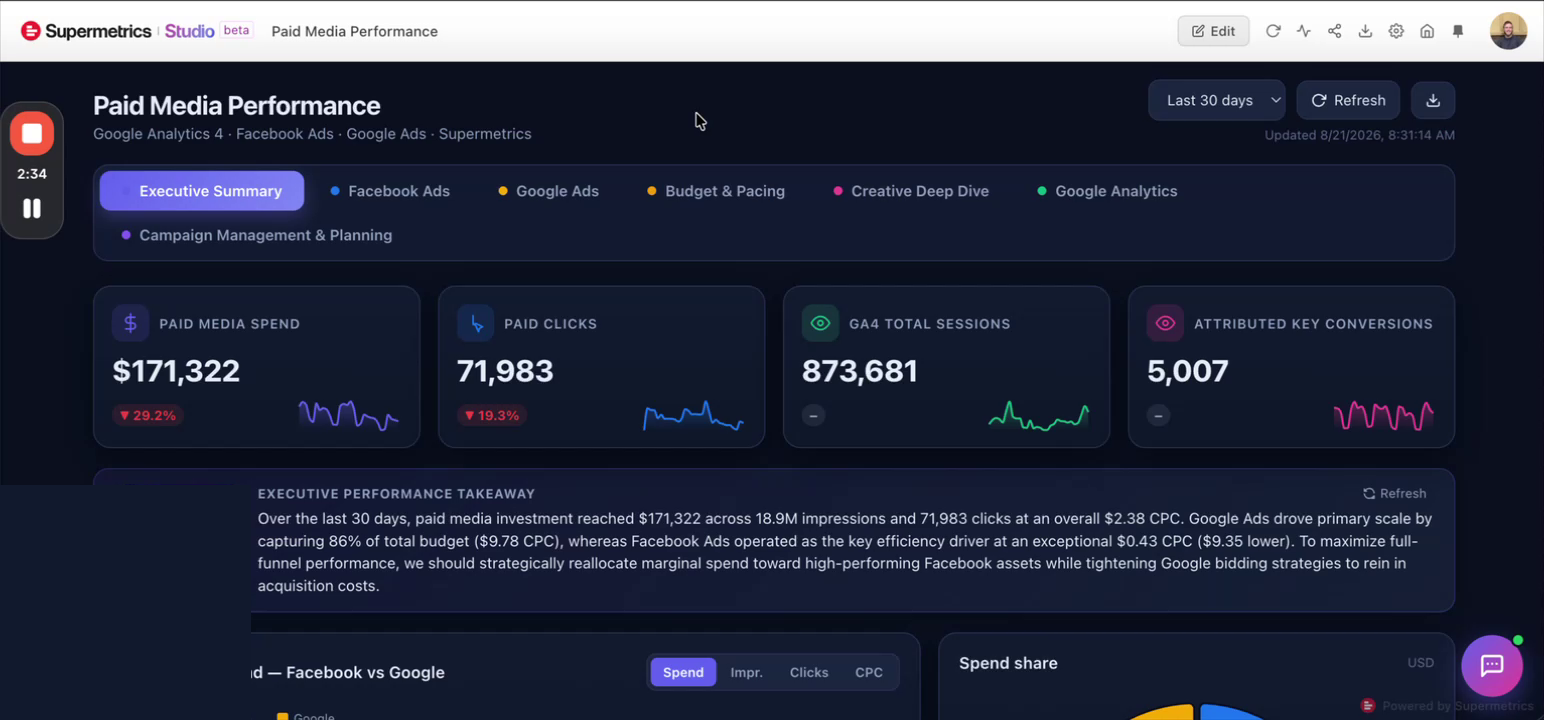
In the prompt field, type the following prompt to create a dashboard with a performance summary across your paid channels:
Generate a 3-tab dashboard with a performance overview across Facebook Ads and Google Ads for the last 30 days. There should be an executive summary page, and individual channel breakdown pages for deeper insights. Use [your account] and present spend metrics in USD. Main KPIs include impressions, clicks, spend, and CPC.Select the accounts to use for the dashboard for each data source.
Step 2: Add a creative deep dive tab
Create a new Creative deep dive tab, and on the tab surface, which ad creatives are working on and which need a refresh.
In your board's prompt field, type:
Add a tab in the navigation bar called 'Creative Deep Dive' that details creative performance with AI-generated suggestions for next steps. The goal is to identify stale creatives. KPIs are impressions, clicks, CPM, and CPC.
Step 3: Add an AI performance summary
Add a short written summary under your KPIs so viewers get the key takeaways without reading the full dashboard.
In your board's prompt field, type:
For all current and future pages, right underneath the KPI scorecards, let's add an AI summary of performance over the selected time period. Keep it brief, 2 or 3 sentences with the most important callouts.
Step 4: Bring in Google Analytics data on its own tab
Connect your website traffic and conversions to the campaigns driving them.
In your board's prompt field, type:
Bring in my Google Analytics data in both the executive overview and in its own breakout page in the navigation bar. Show me traffic, user experience details, and track conversions where they are attributed to paid ads.Select the Google Analytics 4 account to use.
Step 5: Add a chatbot to your dashboard
Let anyone viewing the dashboard ask their own questions about the data, instead of coming back to you.
In your board's prompt field, type:
Add a chatbot function to the dashboard that will allow users to ask questions about the data presented.
Learn more about adding and customizing chatbots in the dashboard.
Step 6: Add tab for budget tracking and pacing
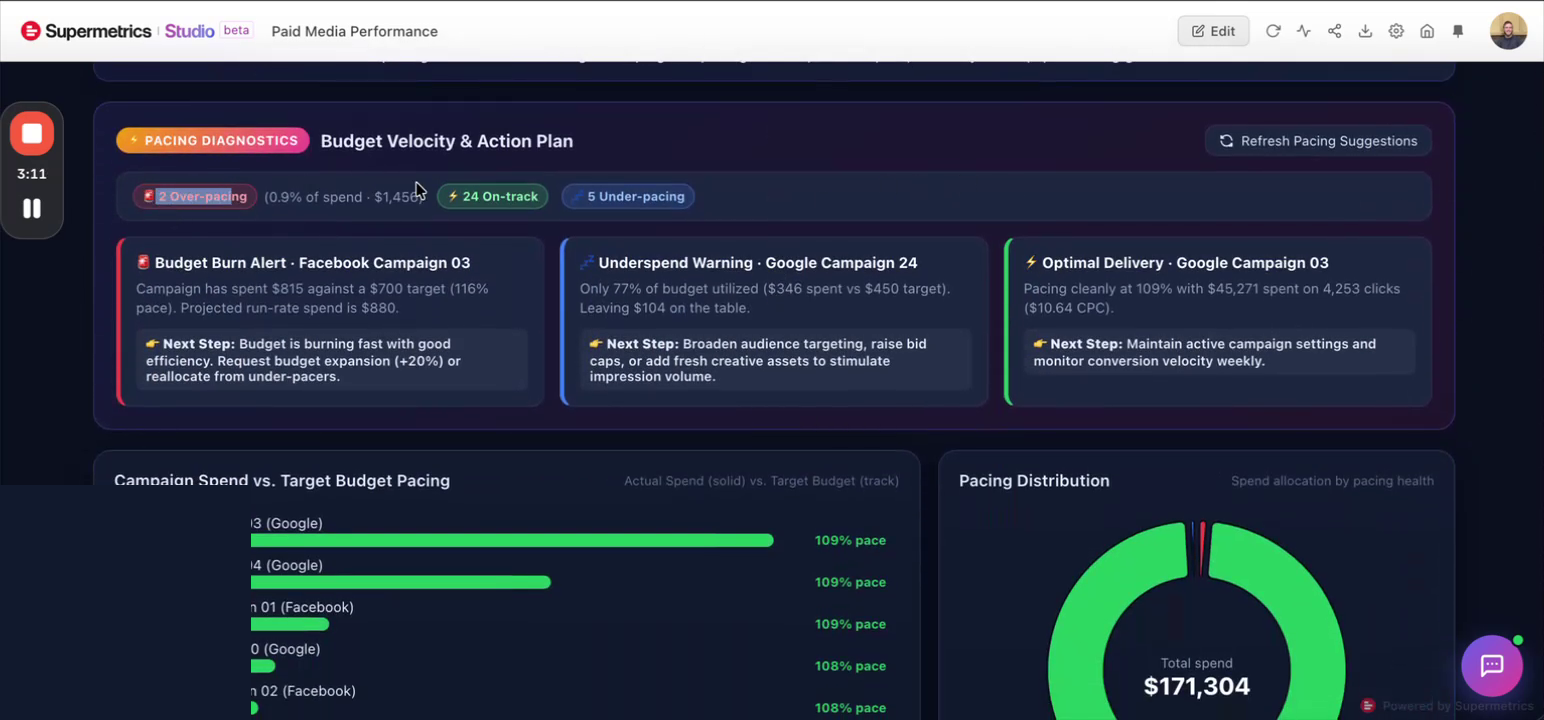
See at a glance which campaigns are over-pacing, under-pacing, or on track, along with a recommendation for each.
In your board's prompt field, type:
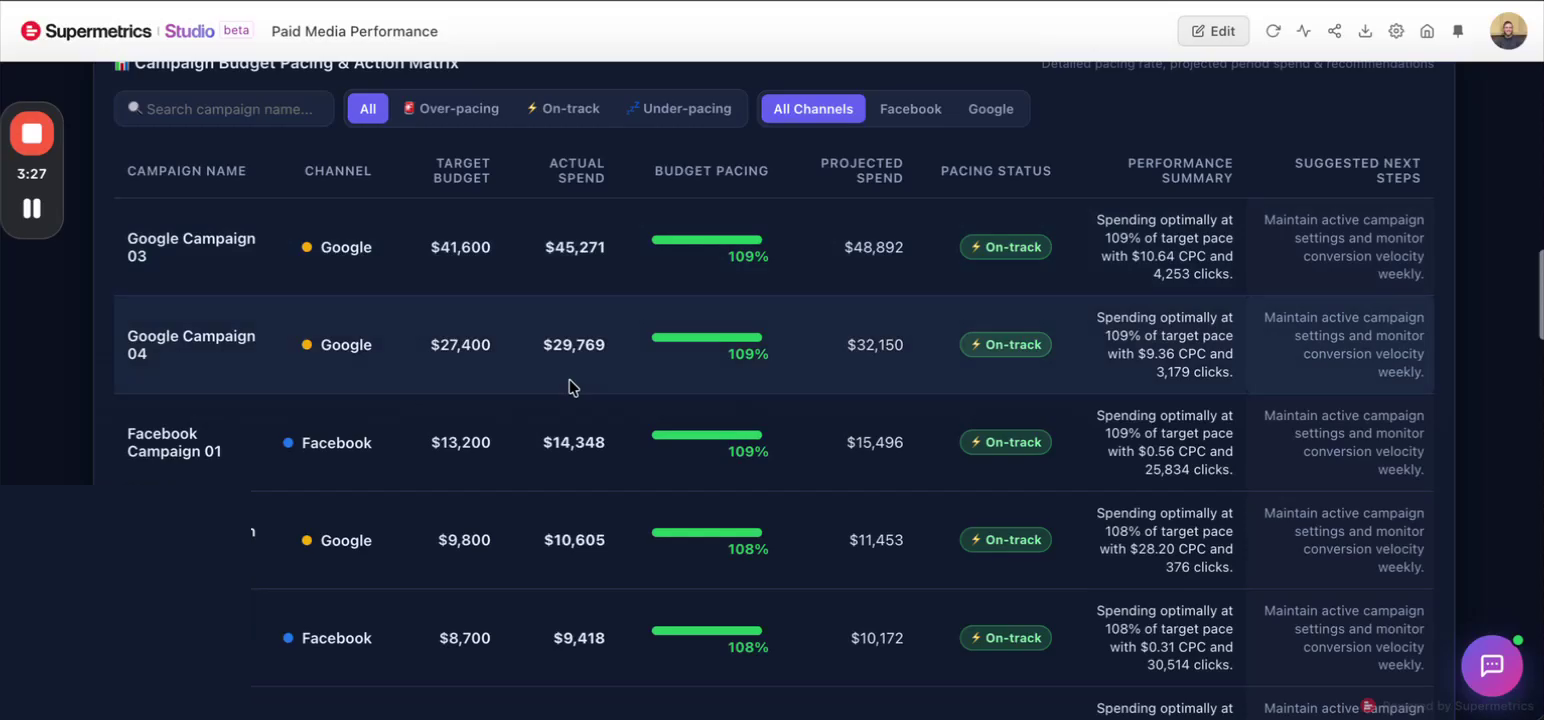
Add a tab to this dashboard/navigation bar that details the budget information for each campaign, alongside pacing information that will help determine if we're over-pacing or under-pacing on each campaign. Provide a column with a performance summary and suggested next steps based on the pacing information available.
This prompt builds a detailed, scrollable table showing each campaign's target budget, actual spend, pacing status, and a suggested next step.
Step 7: Add campaign management and planning tab
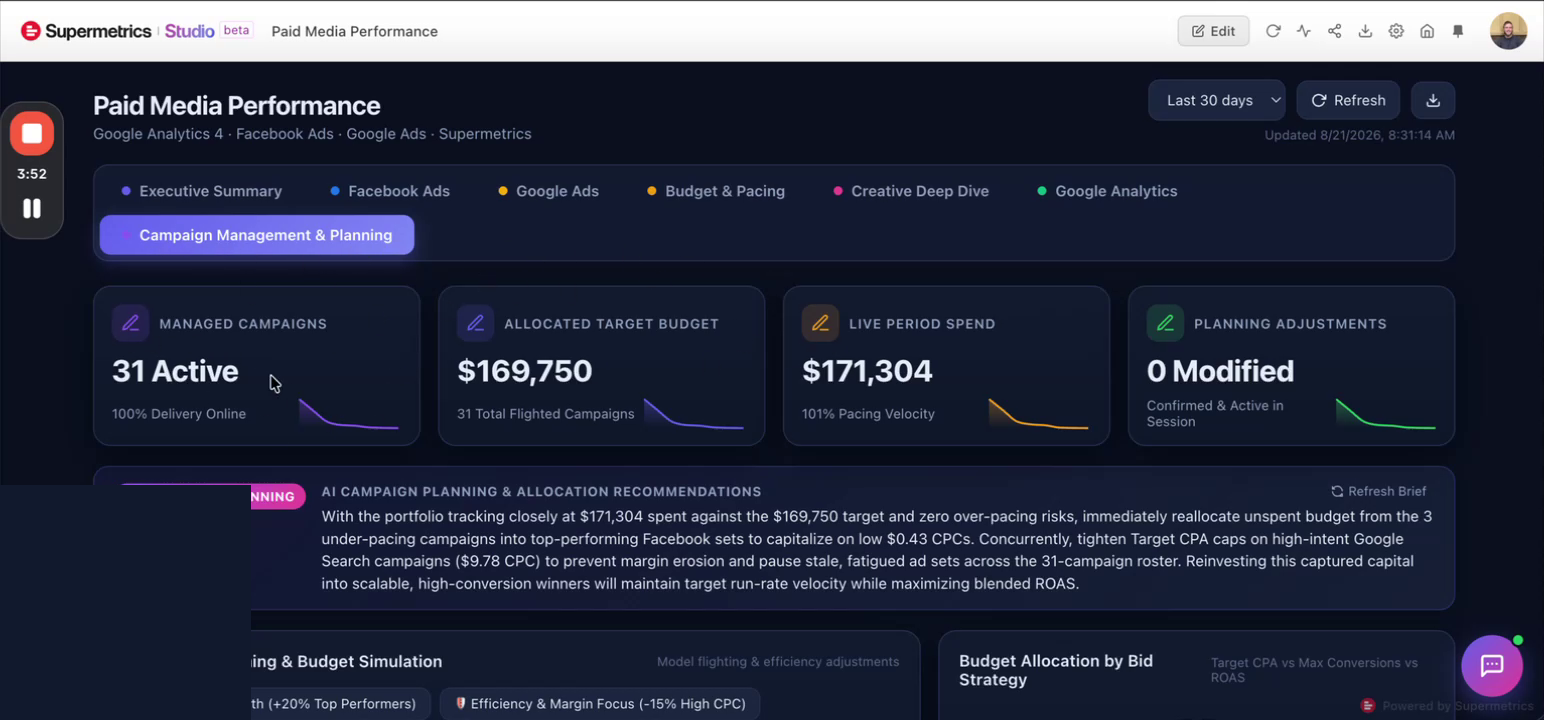
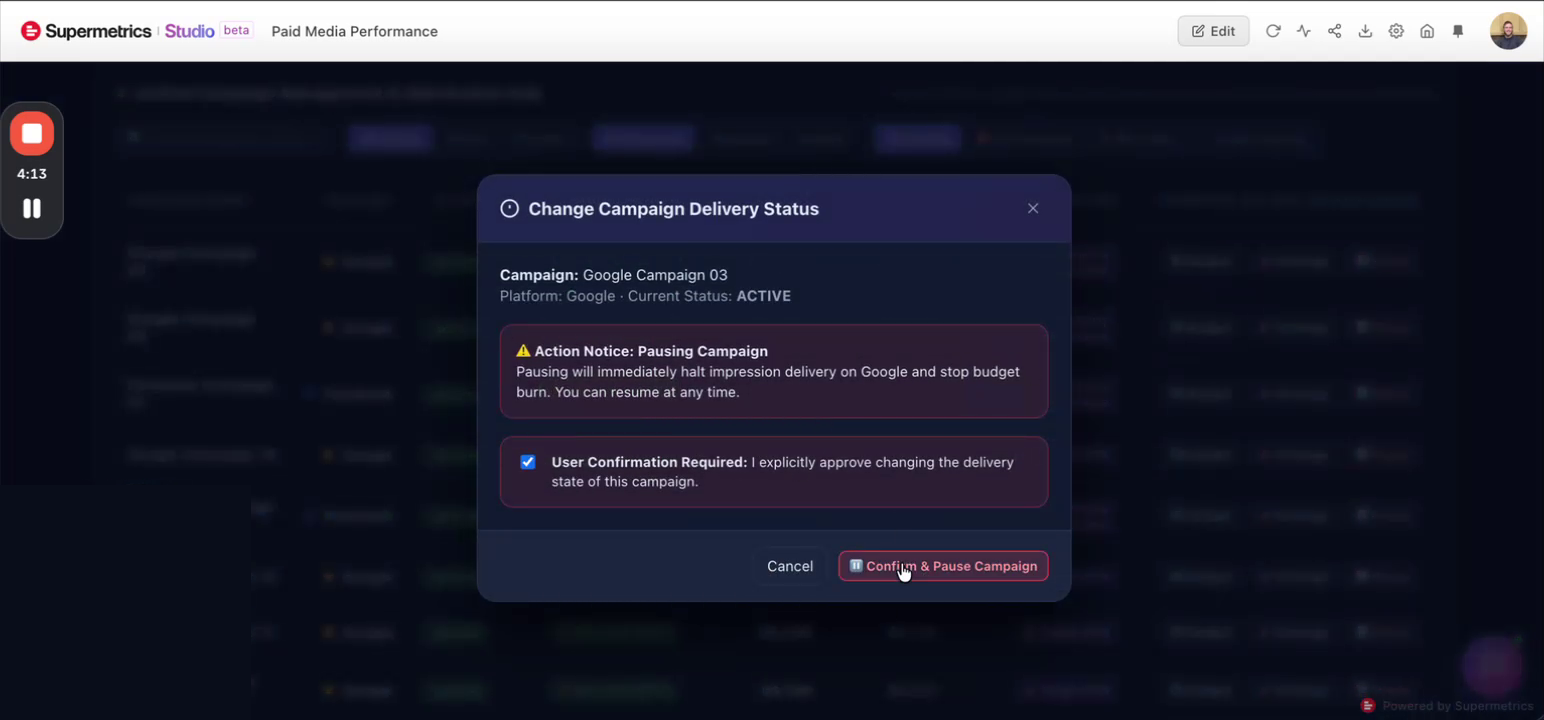
This step turns your dashboard into a control center, with action buttons to pause a campaign, adjust a budget, or change strategy.
In your board's prompt field, type:
Add a final tab to this dashboard/navigation bar called 'Campaign Management and Planning.' Use the insights from the performance and pacing to provide a concise overview of all campaigns, alongside action buttons that can be used to adjust budgets, pause campaigns, and adjust campaign strategies. Ensure no change to a campaign can be made until confirmation from the user takes place.
Warning
This tab can take real action in your ad accounts, such as pausing a campaign or changing a bid strategy. Every action requires explicit confirmation first, so nothing changes automatically.
And here you have your AI-powered marketing dashboard! Enjoy, and feel free to iterate and adjust.
For more ideas on what you can do with AI tools and marketing data, see our use case examples for AI tools.