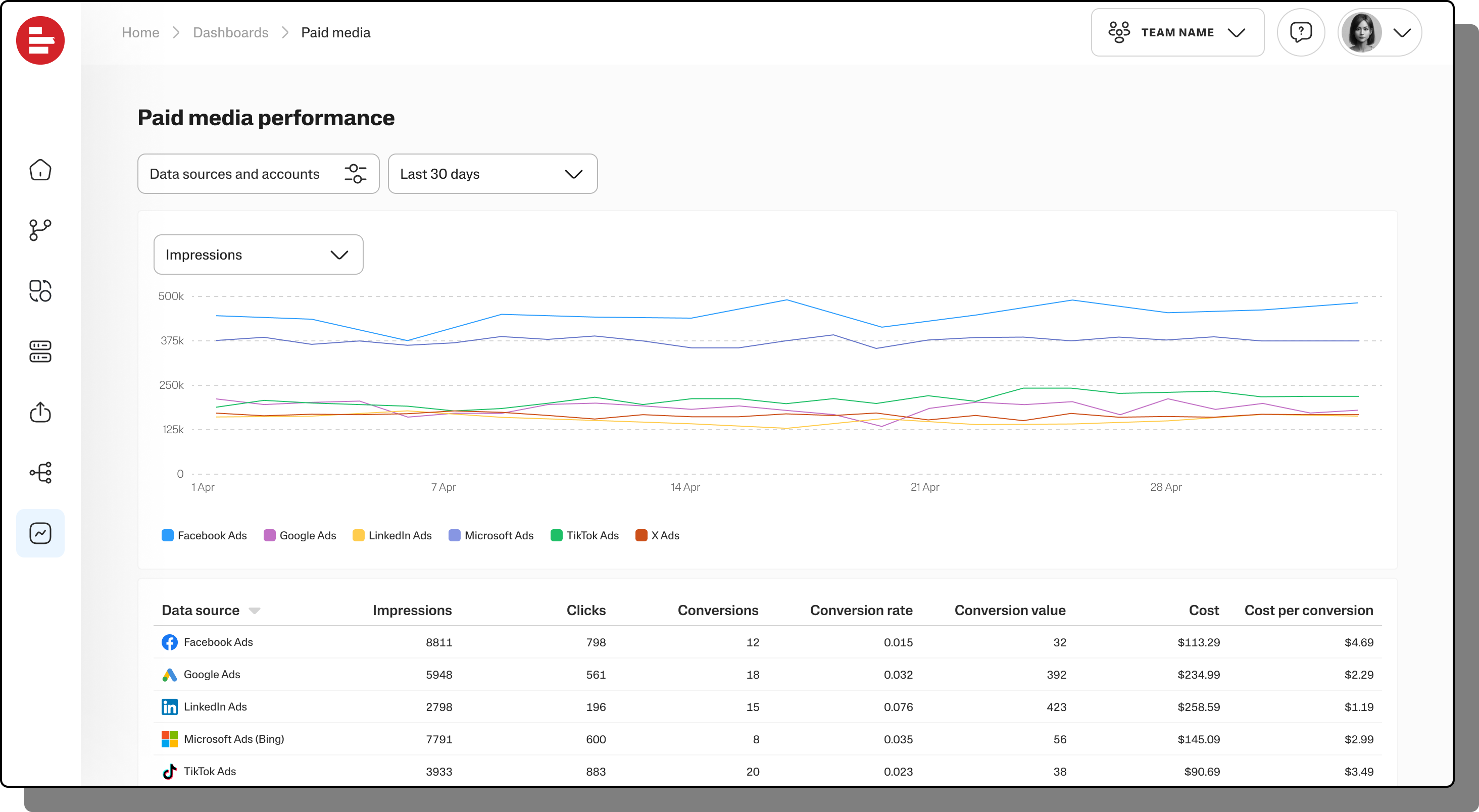
Supermetrics Dashboards provide quick and easy access to essential marketing insights, allowing you to visualize and understand data from multiple marketing sources without the hassle of complex reporting or technical setup.
Note
We're constantly improving the Supermetrics Dashboards. Let us know what you think about Supermetrics Dashboards and what you'd like to see on them!
Key features:
Create your own custom dashboards: Build a custom dashboard that meets the needs of your team, with your data and your visualizations!
Templated dashboards: Access pre-built Dashboards that provide key insights without the need to configure or create reports from scratch. Includes integrations with the most commonly used marketing data sources, such as paid media and web analytics. Note that Dashboards templates are static and you won't be able to make changes to them at this point. We are working on making this possible soon.
Single source of truth for the team: Dashboards are shared across the team so that the whole team sees the same data and can use the data for decision-making.
To use the Supermetrics Dashboards, you need either a Marketing Intelligence Platform subscription or a modern subscription purchased from our website. If you have a legacy subscription, such as a single product license, you’ll need to upgrade to a modern subscription to access the Dashboards on the Hub.
Viewing your dashboards
To see your team's dashboards, on the Supermetrics Hub, go to Dashboards, under Analyze.
You can view a dashboard by clicking on any saved dashboard in the list. There are also search, filter, and sorting for the dashboards in the list view to find the dashboard you need:
Search by dashboard name.
Filter dashboard by data source and last editor.
Sort dashboards by name or last updated date.
Clear filters to return to the full list.
Note that as Supermetrics Dashboards are shared with the team, all changes will be visible to the team.
Learn how to create Dashboards and modify and manage the Dashboards you and your team have created.
Dashboard permissions
To modify Supermetrics Dashboards, you need Owner, Admin, or Editor access. Users with Viewer or Finance roles can't modify Dashboards.
Users with edit permissions can switch between View mode and Edit mode.
Dashboards always open in View mode by default.
If you have edit permissions, you’ll see additional options to manage the dashboards both in the list view (using the 3-dot menu) and within the dashboard itself.
Permission type (role) | What you can do |
|---|---|
View-only access (Viewer) | View dashboards |
Adjust the date range | |
Change available metrics | |
Edit access (Owner, Admin, Editor) | Create new dashboards |
Switch to Edit mode | |
Edit dashboard name and description | |
Change data sources and accounts | |
Duplicate dashboards | |
Delete dashboards |