This guide will walk you through how to add and remove data source accounts and data source connections in Supermetrics for Google Sheets.
Instructions
Add data source accounts
Open the Supermetrics sidebar in Google Sheets.
Go to the
 Queries tab.
Click the edit icon on any query that uses the data source you want to add accounts to.
Navigate to the Select accounts dropdown. Note that this label might change depending on the data source you're using — in Google Analytics 4, for example, it reads Select properties. Learn more about data source account names.
Add the account names.
Remove data source accounts
Open the Supermetrics sidebar in Google Sheets.
Go to the
Queries tab.Click the edit icon on any query that uses the data source you want to remove accounts from.
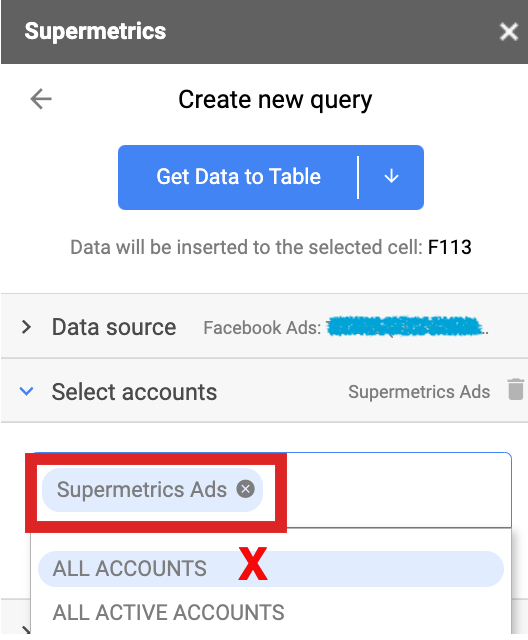
Navigate to the Select accounts dropdown. Note that this label might change depending on the data source you're using — in Google Analytics 4, for example, it reads Select properties. Learn more about data source account names.
Click the Cross (X) icon next to an account name to remove it.Make sure that ALL ACCOUNTS is not selected.
Add data source connections
Open the Supermetrics sidebar in Google Sheets.
Go to the
 Data sources tab.
Click the chevron next to the data source's name.
Click + Add connection.
Remove data source connections
Open the Supermetrics sidebar in Google Sheets.
Go to the
Data sources tab.Click the chevron next to the data source's name.
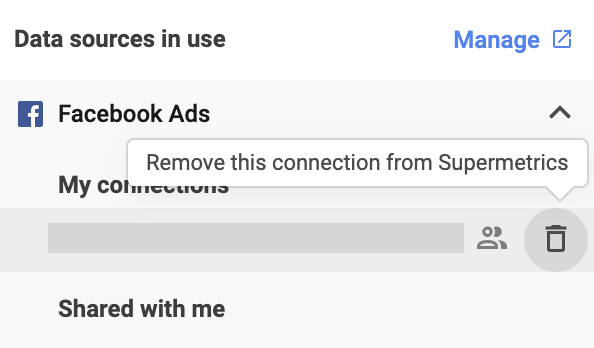
Hover over the data source connection's name, and click the trashcan icon to remove the connection.
You can also manage your data source connections on the Supermetrics Hub, including removing and reconnecting data source connections.