This article guides you on how to build a Supermetrics Data blend that includes custom conversions from multiple ad platforms, Facebook Ads and Google Ads specifically, when these platforms surface conversions differently. Facebook Ads exposes each custom conversion as its own metric, while Google Ads provides a single Conversions metric that must be split by the Conversion type dimension.
To align these fields, you can use a Supermetrics Custom field to extract a single Google Ads conversion metric per conversion type, and when needed, add multiple instances of Google Ads in the same blend to avoid field incompatibility.
To use custom conversions across both Facebook Ads and Google Ads in your blend, you will need to complete the following steps:
Create a Supermetrics Custom Field in Google Ads to isolate a specific conversion type as a standalone metric.
Blend Facebook Ads and Google Ads, ensuring the fields are compatible across the data sources.
Optionally add multiple Google Ads instances to support Google Ads non-conversion metrics alongside conversion metrics in the same blend.
Prerequisites
Access to the Facebook Ads and Google Ads connectors with access to the required data source accounts.
Knowledge of your Facebook custom conversions (names & IDs) and the matching Google Ads conversion names you want to compare.
A subscription that includes Supermetrics Data blending and Supermetrics Custom Fields for the data destination you are using.
Instructions
Step 1: Identify target conversions
You will need to decide which conversions you need to report side-by-side.
For example:
Facebook Ads: “Webinar signups” custom conversion metric
Google Ads: “Webinar signup” Conversion type within the overall Conversions metric
Take note of the exact conversion names you want to match across platforms to avoid a mismatch later.
Step 2: Create a Supermetrics custom field for Google Ads
On the Supermetrics Hub, go to Custom fields under Manage.
Click New custom field.
Select Metric as the field type.
Select Google Ads as your data source and click Next.
Select Condition as the transformation.
In the IF section, choose Conversion type EQUALS “Webinar signups”.
In the THEN section, select Data source field and choose Conversions from the drop-down menu.
In the ELSE section, select Static value and enter “0” in the text field.
Give the field a descriptive name, for example “Webinar signups (GAds)” and click Create custom field.
You can repeat this step to create multiple per-type metrics if you plan to compare several custom conversions from Facebook Ads. For example, Google Ads Conversions - Purchase, Google Ads Conversions - signups.
Step 3: Build your blend
On the Supermetrics Hub, go to Data blending under Manage.
Click Create new blend.
Select Union and select Next step.
Select Facebook Ads as your first data source and the accounts to use.
Click Add Fields, and add Date, your Facebook Ads custom conversion metric(s) and any descriptive dimensions you need for your reporting.
Select Google Ads as your second data source and the accounts.
Click Add Fields in the Google Ads column, and add Date, and the custom field you created, “Webinar signups (GAds)” in this example. Include base
Conversionsmetric only if needed for quality assurance, not for the blend metric.Map the custom conversions and the dimensions to both data sources. In this example, map the Facebook Ads custom conversion metric with the custom field you created for Google Ads, the date with the date.
Click Next Step and add a name for your blend.
Click Create blend to save your blend.
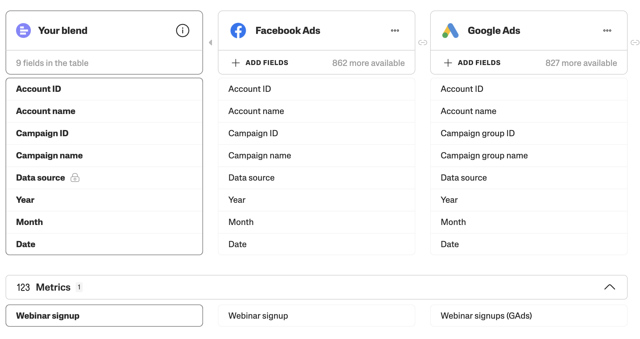
After completing these steps, you get a unified table where both Facebook and Google provide a comparable conversion metric per day (or your chosen frequency), ready for side-by-side charts or aggregated KPIs.
Step 4 (optional): Adding multiple Google Ads instances to your blend
The Google Ads API doesn't allow combining standard delivery metrics, such as cost or impressions, with the Conversion type dimension in the same request. Because the custom field you created relies on Conversion type, you can't include it in the same Google Ads instance as delivery metrics.
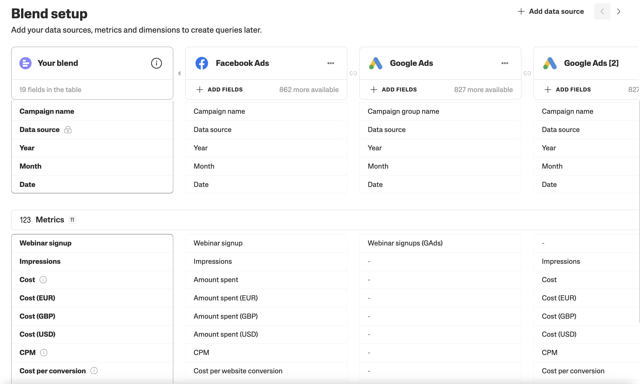
To use conversion metrics together with standard delivery metrics, include two separate Google Ads instances in your blend — one that pulls conversion metrics and one that pulls delivery metrics.
Add a new Google Ads instance in the blend that only includes that custom metric and map the dimensions to the other data sources included in the blend.
All the metrics and dimensions from the first instance should automatically be mapped to the new instance. Unmap the Google Ads conversion metrics and the Google Ads basic metrics.
Keep each instance minimal, include only the fields required for the blend to reduce conflicts.
Best practices
Create one custom field per Google Ads conversion type you want to compare.
Limit blend the dimensions to what is strictly necessary and expand later if needed.
Use consistent naming conventions for custom fields to keep dashboards easy to maintain.
Document the exact logic and target conversion names in you notes.