To protect user privacy, Google Search Console doesn’t show very rare search queries in its results. It omits them completely when the “Search query” dimension is used either in a query or as a filter.
If a site brings a significant number of these types of searches, you’ll see significant discrepancies in your reporting as a result.
Correcting discrepancies
Supermetrics has a feature that aggregates anonymized searches under “Unknown search query”, including them in overall results to increase accuracy. This feature is enabled by default at the Aggregate level, and can also be enabled at the Page level.
However, the correction feature can only be applied to the “Impressions” and “Clicks” metrics. It won’t work with the “Average position” metric, for example.
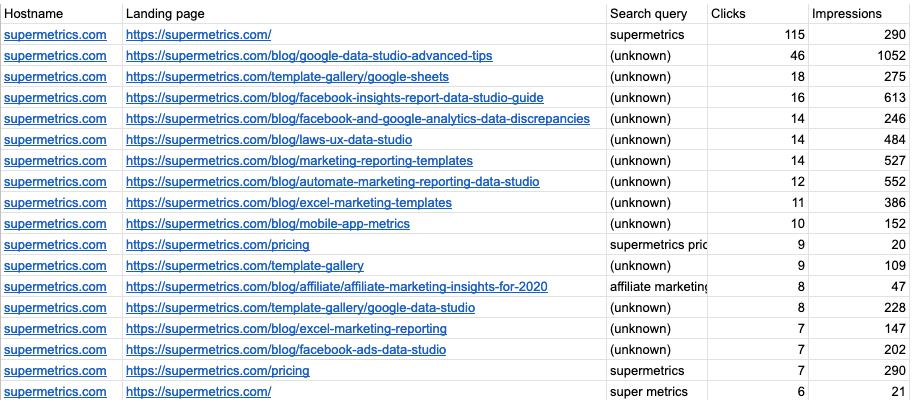
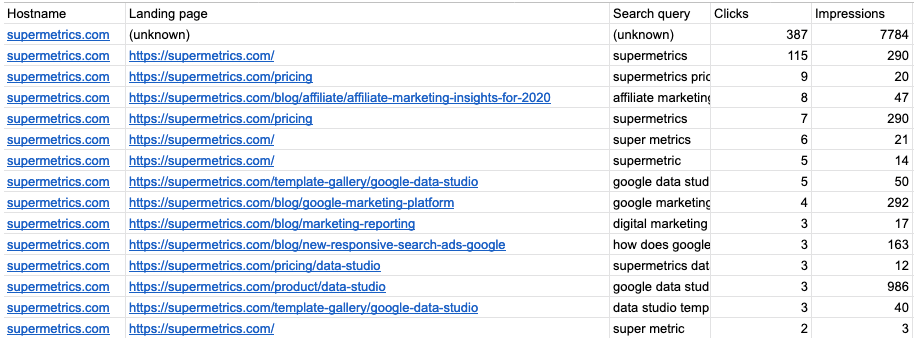
Correction example screenshots
With Page-level correction enabled:
 With Aggregate-level correction enabled:
Instructions
Disable or enable anonymized search query correction in your destination.
AI chats and Supermetrics MCP
To change the discrepancy correction level in AI tools to other than default, you have to include the instructions in your prompt. You can ask the AI tool to, for example, "Use page-level correction for this Google Search Console query" or "Disable discrepancy correction for this report."
Google Sheets
Open the Supermetrics sidebar.
Select the query to modify, and click the pencil icon to edit.
Go to Options.
Select your discrepancy correction level in the Correction for Google discrepancies dropdown.
Data Studio (formerly Looker Studio)
Click on any report element to open Supermetrics.
Click the Edit icon next to the Google Search Console data source.
Click Edit connection.
Scroll down to Correction for Google discrepancies and select your correction level.
Excel
Open the Supermetrics sidebar.
Select the query and click Modify.
Go to Options.
Select your discrepancy correction level in the Correction for Google discrepancies dropdown.
Power BI
Go to the Power BI query list on the Supermetrics Hub.
Select a Google Search Console query and click the edit button.
Select the connection to use.
Click Options.
Select your correction level from the Correction for Google discrepancies dropdown.
Data warehouse and cloud storage
Select your correction level from Correction for Google discrepancies during transfer configuration.
On the Supermetrics Hub, go to Data transfers under Manage.
Select the transfer you'd like to edit.
Under Correction for Google discrepancies, select Disabled, or adjust your correction level to Page or Aggregate.
Query Manager (The Supermetrics API)
On the Supermetrics Hub, go to API queries under Manage.
Select Google Search Console as your data source.
Go to Options.
Select your discrepancy correction level in the Correction for Google discrepancies dropdown.
Troubleshooting
If major discrepancies persist after you’ve enabled discrepancy correction, the cause might have to do with other aspects of Google Search Console. Learn more about these types of discrepancies.