You might need to switch between teams when you're working on your reports with Supermetrics. Take a look at these instructions to learn how.
A data source connection is tied to the person who created it and also to the Supermetrics team it was first added into. This means that you may need to create a new connection to the data source after switching teams.
Instructions
Supermetrics Hub
On the Supermetrics Hub, click your team name on the top bar.
Select a team to switch to.
AI chats and Supermetrics MCP server
Open your AI tool's connector or integration settings. In Claude, this is the Connectors list.
Disconnect the Supermetrics connector.
Reconnect the Supermetrics connector, and select the team you want to use during the connection flow.
Supermetrics Studio
To switch teams in Supermetrics Studio, you must log out of Supermetrics Studio and then log in again to select the team from the team picker.
Google Sheets
Open the Supermetrics sidebar in Google Sheets.
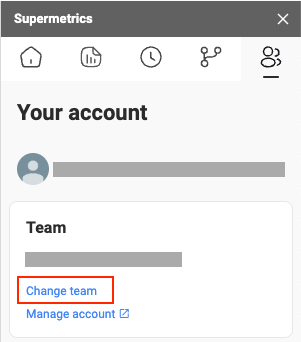
Go to the Your account tab.
Click Change team.
Select a team to switch to.
Create new connections for the data sources you are using with the new team.
Data Studio
On Data Studio, you have to switch teams for each data source your report is using.
Click the edit icon next to the data source's name.
Click Edit connection.
Click the link that follows To add more/manage user accounts.
Select a team.
Add a new connection, or click Done.
Excel
Open the Supermetrics sidebar in Excel.
In the hamburger menu on the top-left corner of the sidebar, click Change team.
Select a team to switch to.
Power BI
On the Supermetrics Hub, click your team name on the top bar.
Select a team to switch to.
Go to Power BI Desktop and navigate to File → Options and settings → Data source settings.
Find and select Connect to Supermetrics.
Click Clear Permissions and confirm your choice.
Click Get data, search for Supermetrics, and click Connect.
Sign in to your account and select the team you want to use in Power BI.