If you want to stop using Supermetrics with Meta data sources, you can request removal of your Meta-specific information from Supermetrics.
This instruction applies to the following Meta data source connectors Supermetrics provides:
Facebook Ads
Facebook Insights
Instagram Insights
Instagram Public Data
Threads Insights
Note that the instructions in this article apply to situations when you no longer wish to use Supermetrics and want your data removed completely. To reset your business integration to resolve connection issues with Facebook and Instagram data sources, follow these instructions instead.
Instructions
Remove information from Facebook Ads, Facebook Insights, Instagram Insights, and Instagram Public Data
Log into Facebook with the account that you use to authorize the data source in Supermetrics.
In the Active section, find the Supermetrics integration for the data source you're using.
Click Remove next to the integration you want to remove.
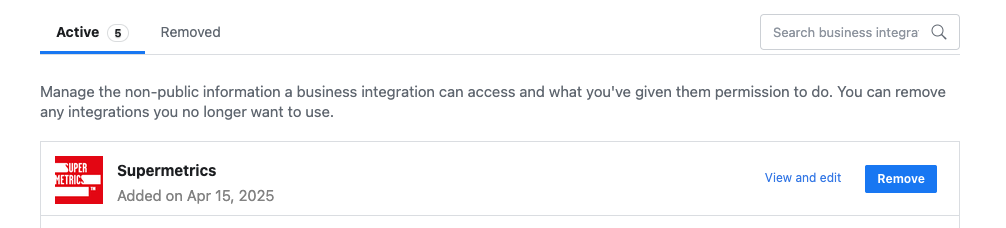
Click Remove again to confirm. This will deactivate your connection with this data source and you will need to reconnect to the data source to use it again.
In the Removed section, find the integration you just removed. Click View details.
Click Send Request. This will request that Supermetrics delete your authentications associated with that data source and if using Facebook Ads, delete all custom fields attached to your user account.
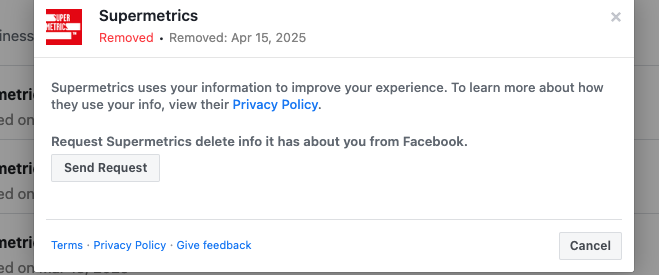
After sending the request, you'll see the that the request has been received by Supermetrics. To view the status of the request, click View Status. The status is either Pending or Completed.
Note that it typically takes about 24 hours for the data removal request to be processed and your data removed.
Remove information from Threads Insights
As Threads Insights uses the Instagram login instead of Facebook Login, the steps are a bit different.
Log into Threads with the account that you use to authorize the data source in Supermetrics.
Under the Account section, select Website permissions.
Under the Active section, click Remove next to Supermetrics Threads.
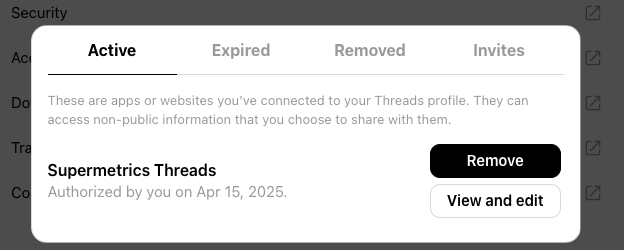
Click Remove again to confirm.