For most queries, a static date range or a predefined period will be suitable for your needs. But there are some scenarios in which these date options may not be suitable. In this article, we'll explore a few alternative options with instructions on how to configure custom date ranges for your queries.
When a static date range isn't an option, there are two ways to insert a custom date range to your query if you can't find a suitable date in the Select dates section of the Supermetrics sidebar. The Start and End date fields accept relative date formats or a cell reference to a cell that contains a date.
Relative date format and the written format of a date
The Start and End date fields accept date formats relative to today. The easiest and most used written date formats are:
yesterdaytoday-x days, replacing x with a number of days
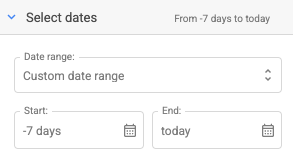
It's also possible to set up more complex dynamic date ranges, such as the examples below:
2024-01-01 to yesterday: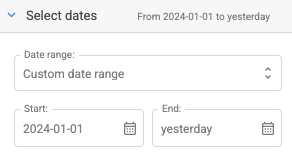
First day of January last year to today last year: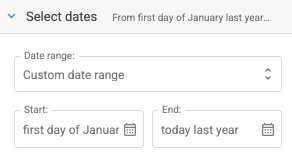
To report on 3 week period up to today, enter last Monday -3 weeks as the start date and today as the end date.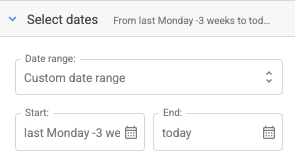
Relative date formats and written date formats are based on PHP coding language and will accept text that adheres to PHP's strtotime functions. Using these formats, it's easy to create dynamic date ranges to keep your query up to date when you run a refresh.
Using cell references in date ranges
In this method, you can simply enter a cell reference in the Start and End date fields for cells that contain a date.
You can also reference cells that use native features in Google Sheets that would dynamically generate a date in a cell. This method allows you to use more complicated logic for dates than the written format in the date range selection.
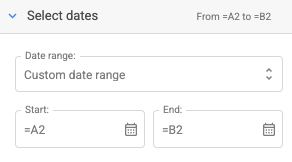
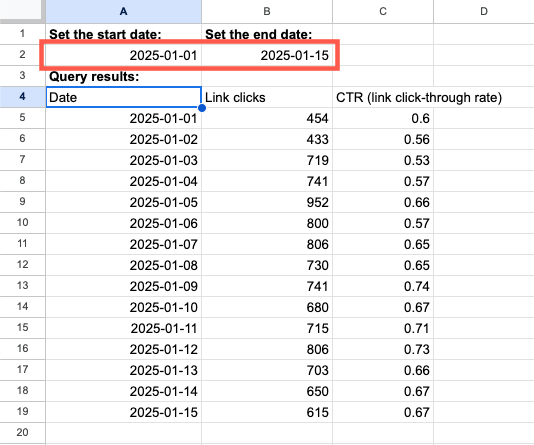
You can edit the dates in cells A2 and B2, then refresh the query to change the query date range.
You can also reference cells that use native features in Google Sheets that would dynamically generate a date in a cell. To generate a rolling date range from the 15th of last month to the 15th of the current month, you’ll use Google Sheets native functions to generate a date. Enter =EOMONTH(TODAY(),-2)+15 for the function of cell A1 and =EOMONTH(TODAY(),-1)+15 as the function of cell B1. This will generate the corresponding dates in the cells and the cell references can be used in the start and end date ranges.
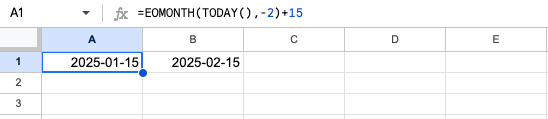
Note that the example formulas in this article are done with European spreadsheet formula separator ";". If you use Google Sheets in the US, the separator inside the formula needs to be ",".